Free AI Video Caption & Subtitle Generator
Upload your video for free, automatically generate timed captions and subtitles, edit the words, style them, and export a finished video for Instagram, TikTok, YouTube, Facebook and more.
“Caption” and “subtitle” are often used interchangeably when people search for tools like this. Caption Studio turns spoken audio into timed text and renders that text directly onto the exported video.
Free captions and subtitles for your videos
Many online video tools advertise free subtitles only to lock your download behind an email sign-up, place a giant watermark across your footage, or demand a paid monthly plan once your video is ready.
Caption Studio gives you a practical, free way to add captions to your videos:
- Generate captions for free: Create subtitles without typing everything manually line by line.
- Edit the generated text before exporting: Fine-tune any misheard names, phrasing, or line breaks in the built-in editor.
- Export your captioned video: Download a clean, full-resolution MP4 with hardcoded captions and no watermarks.
- No account required: You do not need to register, log in, or provide payment details.
To ensure dependable client-side performance across laptops and phones without crashing browser tab memory, videos are currently supported up to 60 seconds in standard MP4, WebM, or MOV formats.
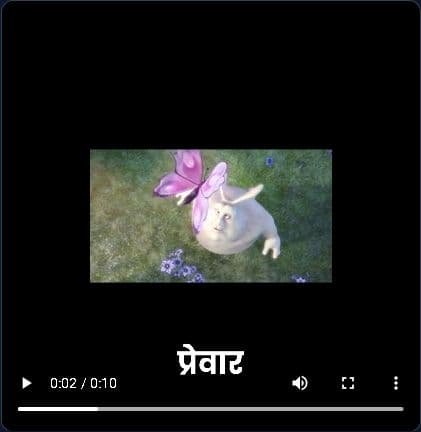
Free AI video caption generator showing Hindi captions in the editor
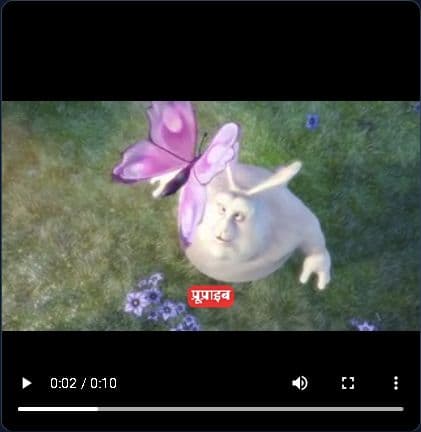
Video subtitle generator showing caption styling controls
Create captioned videos for Reels, TikTok, YouTube and Facebook
A large percentage of viewers watch social video feeds with audio muted while on the go. Adding hardcoded subtitles ensures your message gets across immediately. You can create a captioned MP4 ready to share on:
For Instagram Reels
Vertical 9:16 format with high-contrast text positioned safely above profile tags and descriptions.
For TikTok videos
Fast-paced subtitle pacing with word highlighting that helps viewers keep up with spoken audio.
For YouTube Shorts & Videos
Works for both 9:16 vertical shorts and traditional 16:9 widescreen videos, tutorials, and podcasts.
For Facebook videos
Square 1:1, vertical, and landscape video formats suitable for Facebook feed posts and stories.
Hindi, English and more
Caption Studio is powered by the Whisper speech recognition architecture, giving you practical language flexibility for modern content:
Hindi speech to Devanagari captions
Spoken Hindi is transcribed directly into Devanagari script. Embedded Google Devanagari fonts (such as Poppins, Noto Sans Devanagari, and Mukta) ensure complex conjuncts, vowels, and matras render correctly without broken character glitches.
English speech transcription
Transcribes spoken English and code-mixed conversational dialogue (Hinglish) with synchronized word-by-word timing for easy reading.
Additional supported languages
The underlying Whisper Large v3 Turbo engine supports multiple languages across global speech datasets. Because automatic speech recognition can face challenges with heavy background noise or fast accents, you can always edit any words in the editor before final export.
AI gets a word wrong? Just edit it.
Automatic speech transcription saves hours of tedious manual typing, but it is not magic. No AI tool gets every single word right 100% of the time. Background music, overlapping voices, strong accents, brand names, and regional slang can cause the model to misinterpret phrasing.
That is why Caption Studio does not force you to accept raw AI output. The interactive editor sidebar lets you click any subtitle chunk to fix misheard words, add punctuation, split long sentences into punchy phrases, or merge short fragments together. You get the speed of automatic transcription combined with the accuracy of human review.
How to generate captions for a video
A simple five-step workflow from raw clip to finished captioned video.
Upload your video
Choose any MP4, WebM, or MOV video up to 60 seconds (or click “Try with sample reel”).
Let AI transcribe speech
The on-device speech engine analyzes the audio track and generates synchronized subtitle segments.
Review and edit captions
Click any line in the sidebar to correct names, adjust phrasing, or fine-tune start and end timestamps.
Choose style & position
Pick presets like Reels Bold or Minimal, customize colors, and drag subtitles to your preferred safe zone.
Export captioned MP4
Click Export MP4 to render hardcoded subtitles directly into your video and download the ready-to-share file.
Local video processing on your device
Caption processing is designed to run in your browser, so your video can be processed on your device instead of being uploaded to a remote video-rendering service.
The video and audio tracks are decoded directly inside your browser tab using WebCodecs and WebGPU. Subtitle frames are rendered on an internal canvas and re-encoded into H.264 MP4 locally using Mediabunny.
The only external network requests occur during the initial one-time download of the AI speech model files and web fonts from public CDNs. Once downloaded, those weights remain cached in your browser storage for future captioning sessions.
Related video tools
Explore other helpful browser utilities to prepare, compress, or convert your media files:
Extract audio from an MP4
Convert video soundtracks into clean MP3 audio files directly in your browser.
Compress a large video
Reduce oversized video file sizes locally while keeping visual quality clear.
Convert subtitle files
Convert between SRT, VTT, and SBV subtitle formats without losing timing accuracy.
Compress MP4 files
Quickly shrink large MP4 clips to fit under social upload and email limits.
Unicode to Krutidev
Convert modern Unicode Hindi script into legacy Krutidev font format.
Browse all video tools
Explore our complete suite of browser-based video conversion utilities.
Questions about video captions and subtitles
Q:Is it free?
Yes. Caption Studio is completely free to use. There are no paid subscriptions, no account or email required, no hidden credit cards, and no watermark added to your exported videos.
Q:Does it upload files to a server?
No. Most of our tools run directly inside your browser so your documents stay on your device. For complex conversions that need temporary cloud processing, files are handled in temporary memory without permanent server storage. Caption Studio runs video decoding, speech recognition, and MP4 encoding locally on your computer.
Q:What languages are supported?
Caption Studio supports automatic speech recognition for Hindi (rendering in accurate Devanagari script), English, and conversational code-mixed speech (Hinglish). The underlying Whisper engine also supports multilingual transcription, and you can edit any words directly in the sidebar editor before exporting.
Q:What is a free video caption generator?
A free video caption generator is a tool that analyzes the audio track of your video, transcribes spoken words into written text, and calculates synchronized timestamps for every phrase. Caption Studio runs directly in your browser, allowing you to edit the text, customize colors and fonts, and download an MP4 video with hardcoded captions without requiring paid subscriptions or accounts.
Q:How can I add captions to a video for free?
Upload your video file (up to 60 seconds) into the studio area above. The speech recognition model generates timestamped subtitle segments automatically. Review the lines in the editor, tweak any words if needed, pick your preferred styling preset, and click 'Export MP4' to download your captioned video.
Q:What is the difference between captions and subtitles?
Captions and subtitles are often used interchangeably in everyday searches. Technically, subtitles translate or transcribe spoken dialogue for viewers who understand the language or prefer reading along. Closed captions also include sound cues for deaf or hard-of-hearing viewers. Caption Studio generates visible, burned-in subtitles and captions that stay permanently on your exported video.
Q:Can I generate Hindi subtitles automatically?
Yes. The current pipeline is tailored for Hindi speech recognition and Devanagari script output. It utilizes embedded Unicode fonts (such as Poppins, Noto Sans Devanagari, and Mukta) so that Hindi matras, conjuncts, and halant characters render cleanly without broken glyphs.
Q:Can I generate English captions automatically?
Yes. The underlying Whisper speech model transcribes spoken English clearly, as well as code-mixed speech (Hinglish) commonly spoken in modern social videos. You can review and adjust any English or mixed-language words in the text editor before exporting.
Q:Can I use this for Instagram Reels?
Yes. Caption Studio fully supports vertical 9:16 video clips. You can also turn on the 'Show Reels/TikTok Safe Zones' toggle on the preview screen to make sure your subtitles are positioned away from the right-hand action buttons and bottom account handles.
Q:Can I use this for TikTok videos?
Yes. You can import your TikTok-ready clips, generate synchronized subtitle lines, and drag the text to a comfortable viewing height that remains visible without getting covered by TikTok's on-screen user interface.
Q:Can I use this for YouTube Shorts?
Yes. Vertical shorts benefit heavily from animated, high-contrast captions because many users scroll with low or muted volume. You can pick presets like Reels Bold with active yellow highlights to keep viewers engaged.
Q:Can I use this for Facebook videos?
Yes. The studio works with both widescreen 16:9 videos and vertical/square clips, making it suitable for Facebook video posts, feeds, and Facebook Reels.
Q:Can I edit the captions if the AI gets a word wrong?
Yes, and this is an important feature. Automatic speech recognition can occasionally misinterpret proper nouns, slang, or fast speech. The sidebar allows you to click any line, edit the wording, split long lines into punchy segments, or merge short fragments.
Q:Are the captions burned into the exported video?
Yes. When you export, the browser uses an internal canvas renderer to draw the styled captions directly onto each video frame. The resulting MP4 file contains 'burned-in' subtitles that display automatically on all devices without needing separate .srt subtitle files.
Q:How long can the uploaded video be?
Videos can be up to 60 seconds long. Because all audio decoding, neural speech inference, canvas rendering, and MP4 multiplexing run directly inside your browser tab, 60 seconds is the tested maximum duration to prevent browser tab memory limits from being exceeded.
Q:Which video formats are supported?
You can load video files in MP4, WebM, and QuickTime MOV formats. The tool exports a standard, universally compatible H.264 MP4 video with synchronized AAC audio.